
Steps
Open Connected Apps
Go to the Requestly desktop app and click on the Connect apps button. A popup modal will appear.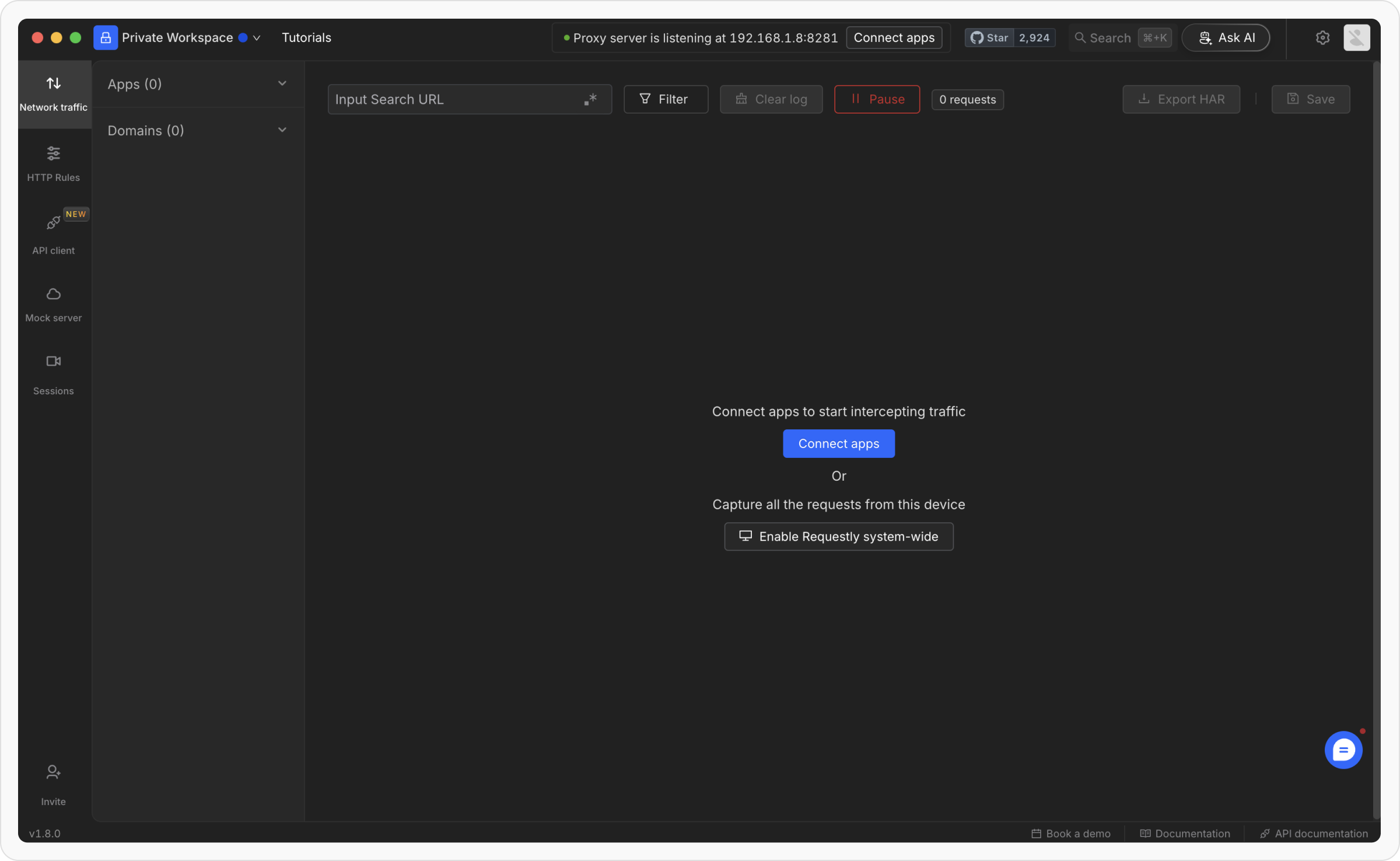
Locate Terminal Processes
In the popup modal, navigate to the Terminal processes section. Click on Setup instruction for Terminal.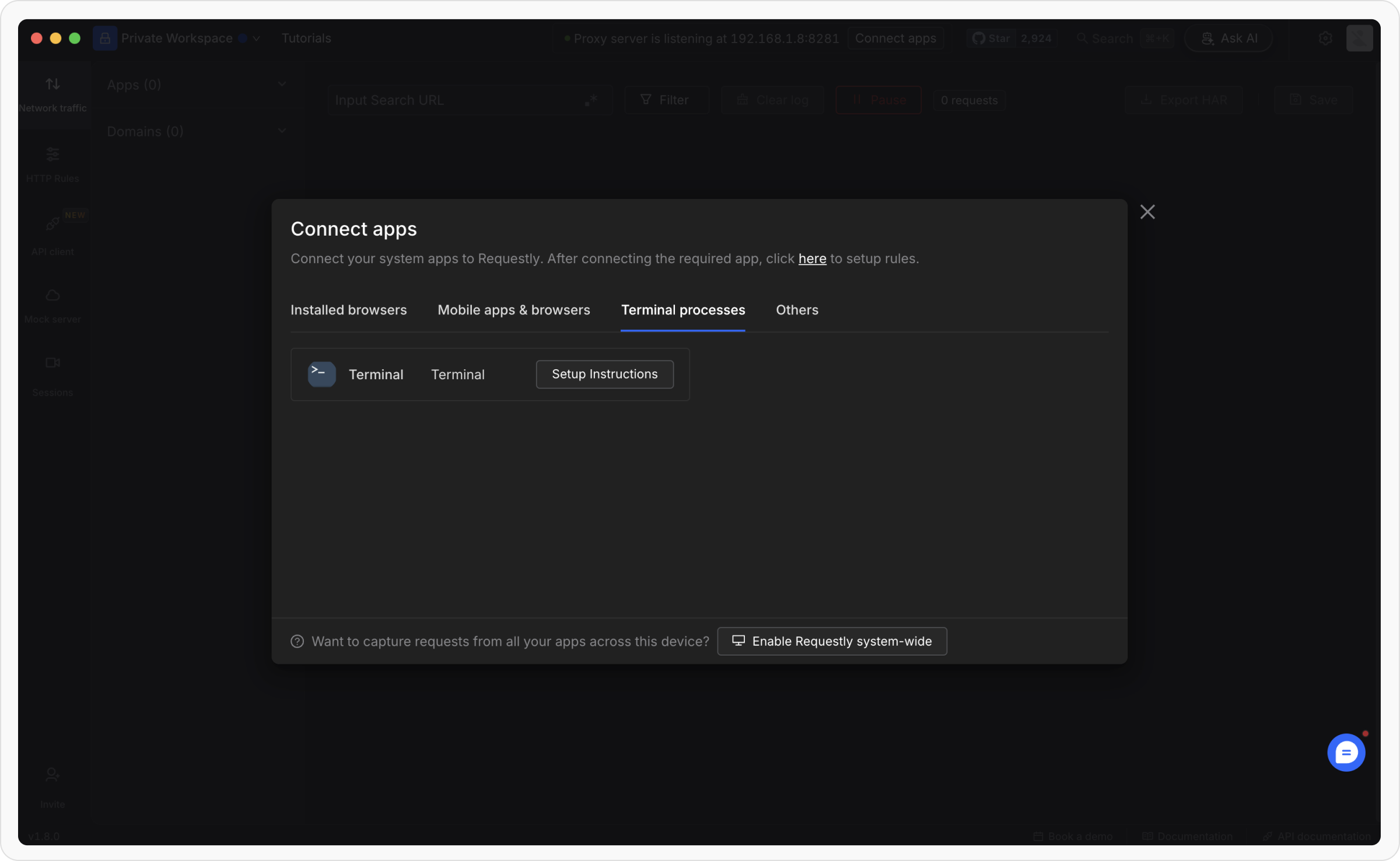
Copy the Setup Command
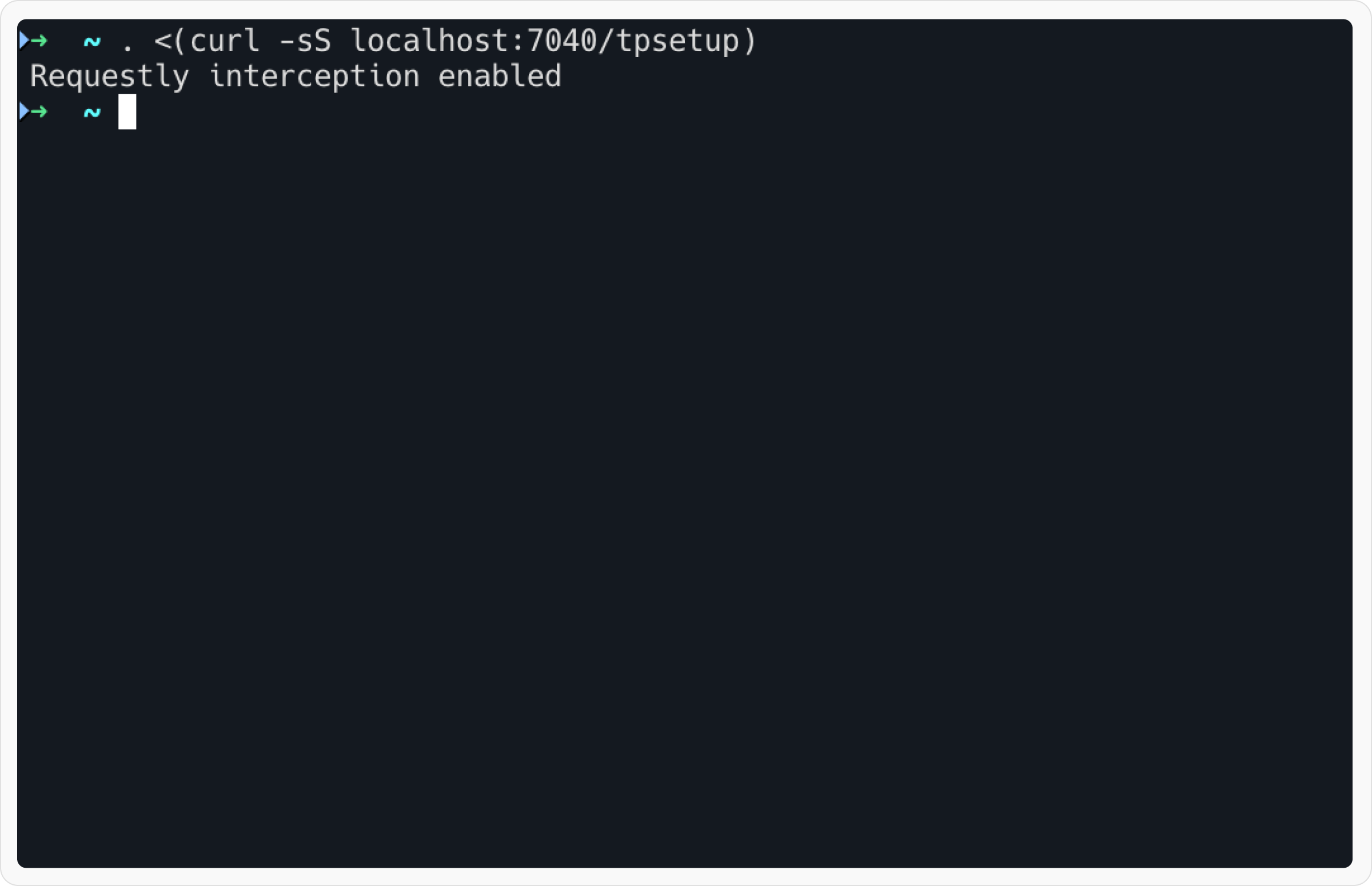
You will see a command displayed in the setup instructions. Copy the command. It will look something like this: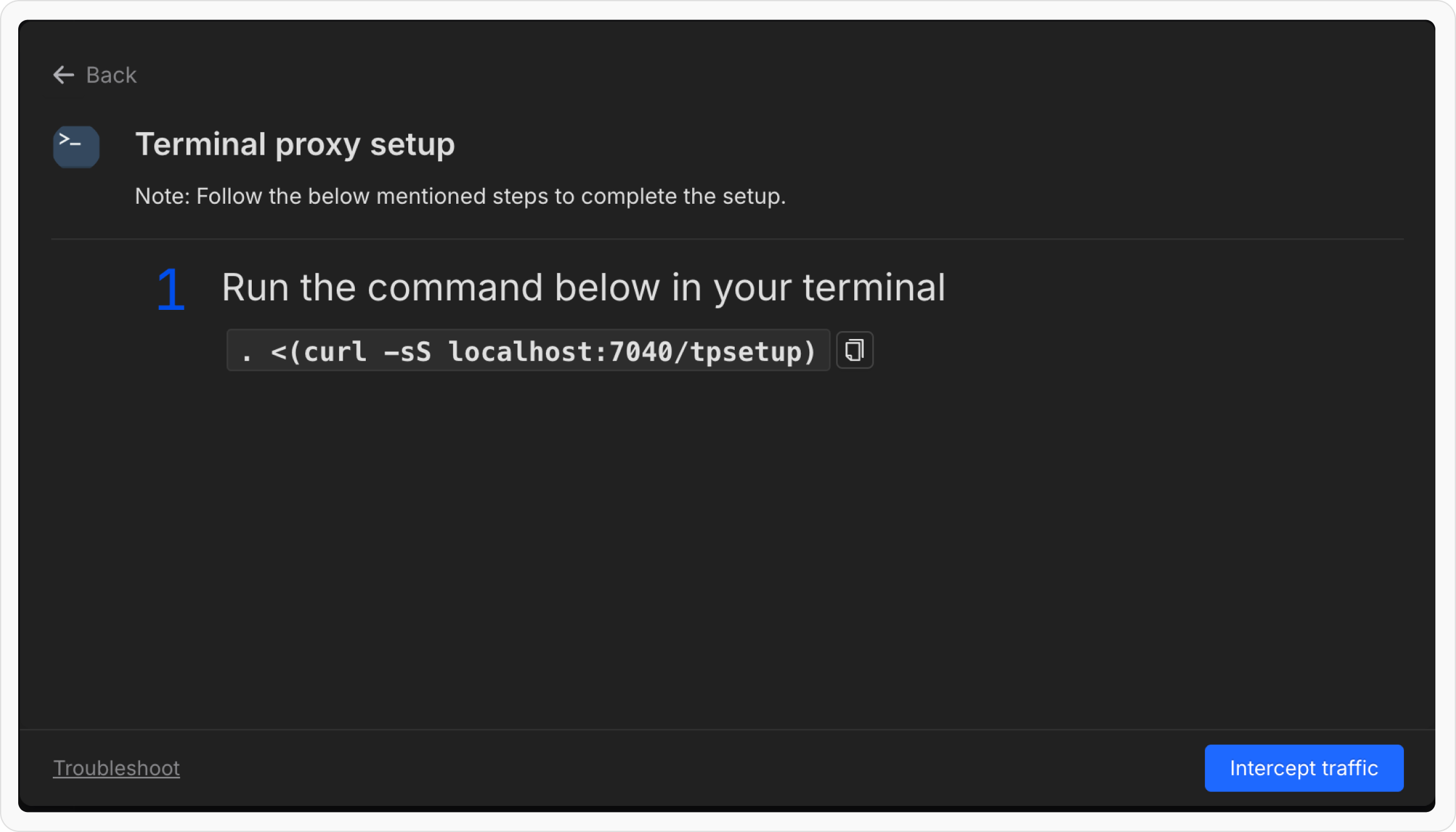
Note: This command might be different depending upon port availability. Checkout in Connected Apps > Terminal
https requests in axios might not show up properly in Network Traffic tab due to the way axios handles HTTPS requests. But the actual request will work properly in your code as expected. Checkout Github Issue for more explanation and quick hack on how to apply rules on these requests
Testing Proxy
- Go to
Network Traffictab in Requestly Desktop App.
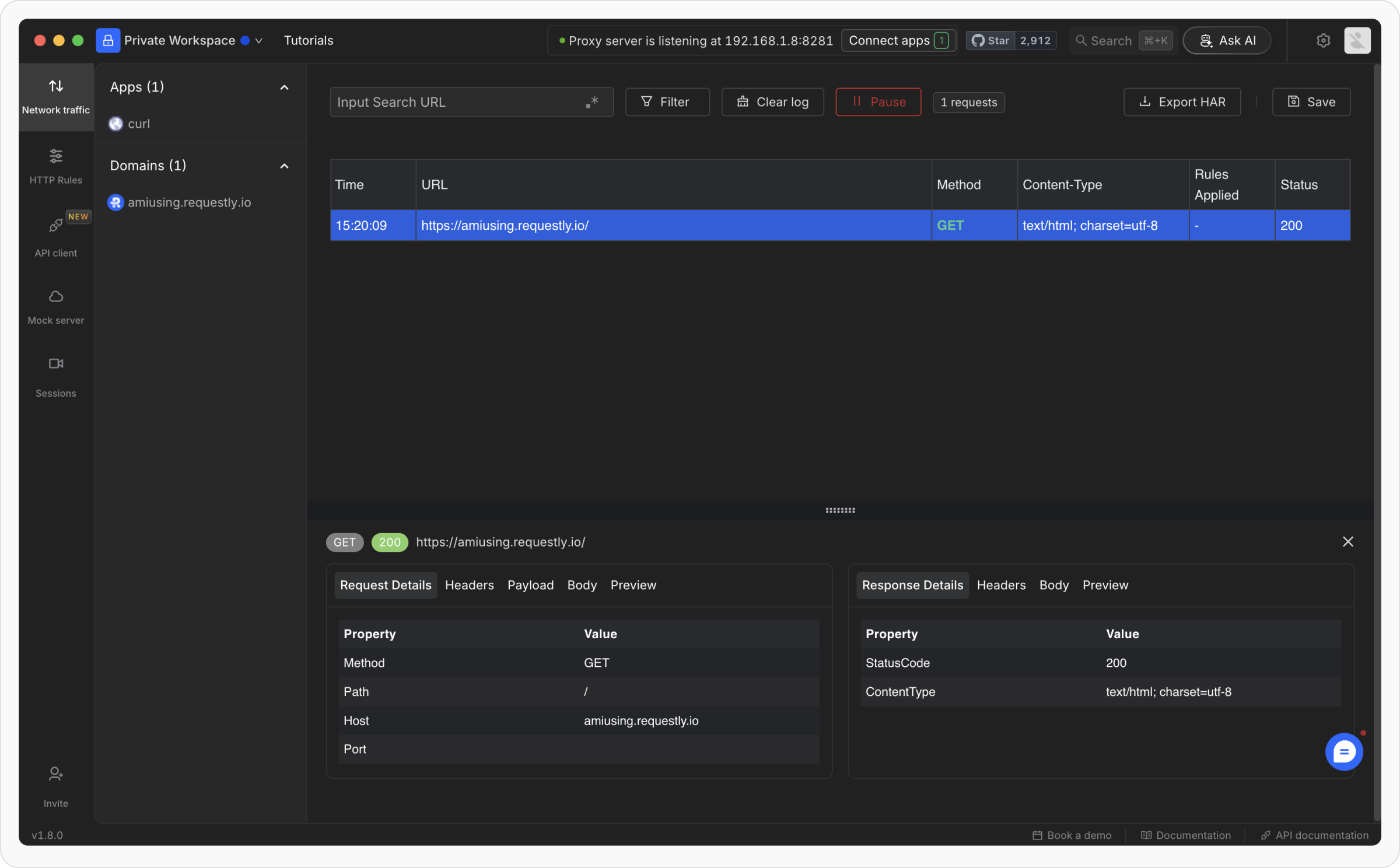
- Now Make a curl request to https://amiusing.requestly.io/ using your terminal and look for that request in the Requestly Network Interceptor.